The “window linking” icon has been moved to the top left corner next to the window title.
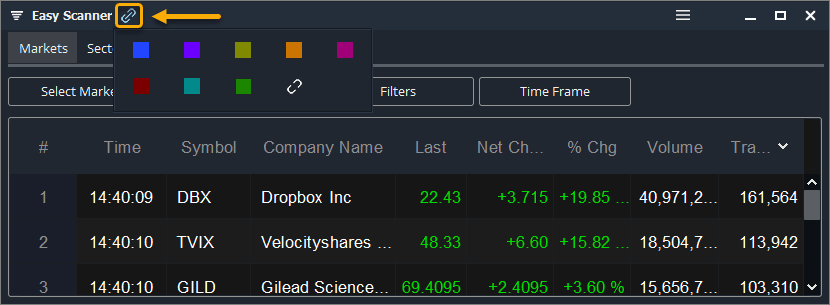
The icons have been compressed into a sleek menu found at the top of each window.
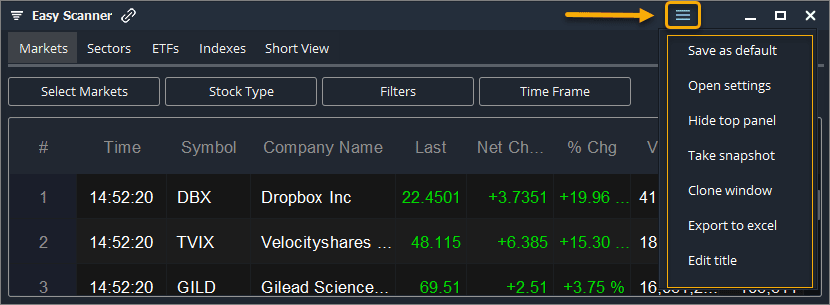
The menu options are:
Save as Default - allows you to save your default window preferences such as visible columns, column width, window size and window position on screen. When SAVE is clicked, all future windows for that feature will open with the saved preferences.
Open Settings - opens the system settings window where you can fully customize all of your global settings for each feature.
Hide Top Panel - Let’s you hide or show the top navigation panel on any window. This is great to maximize screen real estate when the navigation is not being used or needed.
Take Snapshot - take an instant snapshot of any individual feature or of your entire monitor. This is great to use when sending us technical support cases. It is also great to share images of your windows on social media or between friends.
Clone Window - Let’s you duplicate any window.
Export to Excel - download the data to MS Excel.
Edit Title - Let’s you edit the title of any window strictly for Layouts purposes.